We are glad you made it here. Get ready to embark on this learning adventure with Skyramp.
1 - Intro
Learn about the key concepts to be successful with Skyramp
What is Skyramp?
Skyramp is a super flexible way to do distributed testing of modular apps. It’s a toolkit for making sure your microservices work well together and don’t break in production.
Who can make the most of Skyramp?
If you’re a developer or an automation engineer drowning in microservices that need to play nicely together, Skyramp is for you, both when you’re hands-on-keyboard and when you’re running automated tests.
Why should I care about Skyramp?
Think about it this way: with distributed applications you can’t just rely on unit tests and end-to-end tests anymore. The combinatorial complexity is just too high. Distributed integration and performance testing of key parts of your application is the way forward. But how do you bring up just a part of your application? How can you isolate the microservices that you want to test? How do you easily trigger tests and get meaningful results that are easy to parse? Skyramp’s TestKit offers easy answers to these questions.
Where can I use Skyramp?
The Skyramp clients meet you in your workflow whether you use the terminal, VSCode, or another IDE. Similarly, the Skyramp libraries can be used to create distributed tests that augment your current test suite. Right now, the only requirements are Docker (for the container runtime) and Kubernetes (for orchestration).
When should I use Skyramp?
Use Skyramp for functional integration and performance testing in these situations:
Inner Dev Loop - That’s when you’re building and fixing your microservices. Skyramp can help you test things as you go, so you catch problems early.
Pipeline - When your code’s ready to push, Skyramp can jump into your automated testing pipeline and make sure everything still works like a charm.
How does Skyramp make testing easier?
Skyramp provides a TestKit with helpful tools inside:
Deployer - When you want to get your system under test up and running, Deployer helps you bring up just the services you care about and speeds up iteration through features like hot code reload.
Mocker - Think of it as a master of disguise for your services. It pretends to be other services so you can easily isolate services for testing.
Tester - Tester runs your tests and neatly organizes the results while making it easy to reach hard-to-get-to endpoints in your cluster.
So, are you ready to put Skyramp to the test? Check out the Use Cases page for ideas! You can also jump right in and Install the Client.
Skyramp works on the following operating systems and requires a container runtime:
Operating Systems
Min Version
Mac OS X
11.0
Ubuntu
18.04
CentOS
8.04
Fedora
36.0
Windows Subsystem for Linux (WSL)
1
Container Runtime and Cluster Support
Installing Skyramp is easy. All you need is Docker for the container runtime and Kubernetes for cluster orchestration.
Follow the links below to continue.
2.1 - Install Client
Learn how to download and install the Skyramp terminal client
For testing in the inner dev loop, you can use Skyramp through either our VSCode Extension or our terminal client. This page walks you through installing the terminal client.
For automated testing in CI/CD pipelines, please see the available Skyramp libraries.
Install the Terminal Client
As long as your machine has internet connectivity, you can easily install Skyramp with the following command:
Continue to the Walkthrough » for setting up a cloud-native application to try out Skyramp.
2.2 - Install Worker
Learn how to install the Skyramp Worker in your environment
The Skyramp Worker acts as the essential foundation for both Mocker, enabling service mocking capabilities, and Tester, facilitating the execution of in-cluster tests.
Prerequisites
If you don’t have Helm installed, refer to Helm’s documentation to get started. Then, follow these two steps to run the Skyramp Worker in Kubernetes using Helm:
1. Install Worker Using Helm
Add Skyramp Helm Repo: To access Skyramp’s charts, add the Helm repository:
Replace /path/to/kubeconfig with the path to your Kubernetes configuration file (kubeconfig).
Replace <namespace> with the Kubernetes namespace where you want to deploy the Skyramp Worker chart. A namespace is a logical grouping of resources within your cluster. You can choose an existing namespace or create a new one.
Replace <release-name> with a name for this Helm release. A release is a unique instance of a Helm chart installation. You can choose any meaningful name for this release.
2. Register the Kubernetes Cluster with the Client
To interact with the Worker, you need to register your cluster with the Skyramp Terminal Client:
skyramp cluster register <path to kubeconfig file>
Note
If you deploy services using our Deployer, the Worker will be automatically installed, and no Helm install of Worker or separate cluster registration is necessary.
Installing Worker with Python Modules (Optional)
If you need to include additional Python modules in your Skyramp Worker for running dynamic requests and responses, you can follow these steps to build a custom Worker image with the required modules and then deploy it using Kubernetes.
Building the Worker Image with Python Modules
Create a Dockerfile in your project directory or modify the existing one if you have it.
FROM --platform=linux/amd64 public.ecr.aws/j1n2c2p2/rampup/worker:latestCOPY requirements.txt /RUN pip3 install -r /requirements.txt
This Dockerfile uses the base Skyramp Worker image and copies your requirements.txt file into it, then installs the Python modules specified in requirements.txt. Make sure to replace requirements.txt with the actual name of your requirements file.
Build the custom Worker image using the docker build command. Replace <image-name> with a suitable name for your custom image and <image-tag> with the desired tag:
docker build -t <image-name>:<image-tag> .
Note
Ensure that your Docker image and Kubernetes configuration are compatible with your platform and architecture (e.g., --platform=linux/amd64).
Using the Custom Worker Image
Now that you have built the custom Worker image with your Python modules, you need to push it to a container registry that is accessible to your cluster nodes. Then, you can deploy the Skyramp Worker with the custom image using the following helm install command, overriding the image configuration directly:
A tutorial for developers getting started with Skyramp for Kubernetes
This tutorial is designed for developers who are just starting with Skyramp and want to grasp the fundamental concepts of testing and mocking from scratch. Think of it as the “Hello World” for testing and mocking microservices with Skyramp. By the end of this tutorial, you’ll be equipped with the knowledge to seamlessly integrate Skyramp into your own environment.
Note: this tutorial requires a development machine with a terminal client to execute the necessary commands. Skyramp supports Mac, Windows, and Linux environments.
Prerequisites
Before we dive into the tutorial itself, make sure you have the following prerequisites in place on your development machine:
You can verify the kubectl installation with kubectl version --client:
$ kubectl version --client
Client Version: v1.29.0
Kustomize Version: v5.0.4-0.20230601165947-6ce0bf390ce3
Section 1: Setting Up a Test Environment
The first step for testing and mocking microservices is to set up a test environment. In this section, we will step through using Kubernetes to run a simple service that we can test with Skyramp.
1. Open a terminal client and create a directory on your development machine that will contain the tutorial project. We will use tutorial as our project directory name. In this case, execute these commands:
mkdir tutorial;cd tutorial
2. Next, let’s create a Kubernetes cluster using the Skyramp CLI. You can always register your own Kubernetes cluster with Skyramp, but we’ll create one for the purposes of this tutorial. Simply execute this command in a terminal client:
skyramp cluster create -l
You will see output similar to this:
Creating local cluster [##############################################################] 100 %Successfully created local cluster.
Starting/restarting Resolver [###########################################################] 100 %Resolver manages DNS changes needed to access the cluster and needs sudo access.
Password:
Provide the password and then set the KUBECONFIG environment variable in the terminal:
Then, install the echo service into the Kubernetes cluster using helm install:
helm install echo skyramp/echo -n default
The echo service is a simple service that we will use for testing in this tutorial, and can ultimately be substituted by your own services you want to test.
You should see output similar to this:
NAME: echoLAST DEPLOYED: Thu Jan 11 08:48:55 2024NAMESPACE: default
STATUS: deployed
REVISION: 1NOTES:
1. Get the application URL by running these commands:
exportPOD_NAME=$(kubectl get pods --namespace default -l "app.kubernetes.io/name=echo,app.kubernetes.io/instance=echo" -o jsonpath="{.items[0].metadata.name}")exportCONTAINER_PORT=$(kubectl get pod --namespace default $POD_NAME -o jsonpath="{.spec.containers[0].ports[0].containerPort}")echo"Visit http://127.0.0.1:8080 to use your application" kubectl --namespace default port-forward $POD_NAME 8080:$CONTAINER_PORT
4. Use kubectl to verify that the echo service was deployed to the cluster and is up and running.
kubectl get pods -n default
You should see output similar to below. Wait to proceed until you see “1/1” in the “READY” column for the service.
NAME                              READY   STATUS    RESTARTS   AGE
echo-cfd9d4bd9-t5vqq              1/1     Running   0          68s
5. Finally, we recommend creating a skyramp subfolder in your project directory to keep all of your Skyramp-related files in an organized location. Of course, this is entirely configurable to your specific needs. For the tutorial, initialize the Skyramp project folder structure with this command:
skyramp init skyramp
This will create a directory called skyramp with several folders underneath. Change the directory to skyramp and list the subdirectories:
cd skyramp; ls
You should now see the following subdirectories for storing your important configuration files:
endpoints mocks responses scenarios targets tests
The skyramp init command can also be used to generate configuration files as templates for tests, mocks, and targets. For more information, check out the Skyramp CLI docs.
Great job! The initial setup for the test environment is now complete.
Section 2: Testing Services with Skyramp’s Tester
Testing is essential to ensure the reliability of your applications. Skyramp simplifies the testing process by providing tools to validate the behavior of your distributed services. In this section, we’ll create a simple test scenario for the echo service.
1. Under the endpoints folder, create a file called echo-endpoint.yaml with these contents:
This test scenario will call the echo-get endpoint and pass the value “ping”. The assert will then validate that value returned from the service is “ping pong”.
3. Under the tests folder, create a file called echo-test.yaml with these contents:
4. Notice how the 3 files above relate to each other by endpointName and scenarioName. You should now have this file structure in your project directory:
With the test files in place, let’s run our test scenario using skyramp tester from the command line:
skyramp tester start echo-test -n default
Note: the first time you run the test, the Skyramp Worker will be provisioned and installed to the cluster.
Nice work! You’ve successfully created and run a basic test for the echo service using Skyramp. Skyramp can support many types of test scenarios across multiple microservices running in a test environment. From this starting point, you can continue to explore the various ways to enhance the reliability of your applications through testing with Skyramp.
Mocking is a crucial aspect of testing where we can simulate certain functionality to isolate and test specific components without relying on the actual implementation. Skyramp provides a rich framework for mocking within Kubernetes environments.
1. From the terminal, execute the following to uninstall the running echo service:
helm uninstall echo -n default
Expected output:
release "echo" uninstalled
2. If we run our test scenario again, we see that the service we want to test is not running. So, the output below showing an error with “no such host” is expected.
skyramp tester start echo-test -n default
Expected output:
Starting tests
Tester failed
Test echo test------
[Status: failed][Started at: 2024-01-11 09:05:29 PST] Error: failed to resolve echo: lookup echo on 10.96.0.10:53: no such host
- pattern0.echo_test
[Status: initializing][Started at: N/A]
3. Let’s proceed by mocking this missing service, which is the echo service. Under the responses folder, create a file called echo-response.yaml with these contents:
Now that you’ve grasped the basics of testing and mocking with Skyramp, you can adapt these concepts to your specific environment.
Integrating Skyramp with Your Kubernetes Services
1. Identify the services in your Kubernetes environment that can benefit from testing and mocking.
2. Incorporate testing scenarios like the one in Section 2 to validate the functionality of your services.
3. Follow a similar process to what you’ve learned in Section 3 to create mock descriptions for service dependencies as needed.
Customizing Skyramp Configurations
1. Explore Skyramp’s configuration options to tailor the testing process to your specific needs. Skyramp supports multiple protocols and environment setups.
2. Use skyramp init to create description file templates as a base to work from. These templates provide the many configuration parameters available to you.
Skyramp makes it easy to do distributed testing of your modular apps under real-world conditions. The components of the Skyramp TestKit addresses the different challenges of going beyond basic unit testing. Let’s look at some of the use cases where Skyramp can help:
Deployer
Deploy Only What You Need
Bringing up the whole application for testing when you’ve only touched a couple of services loses time. Deployer makes it super easy to deploy only what you need to test.
Hot Code Reload
Deployer makes it easy to iteratively develop or debug your code through our hot code reload feature, saving valuable time compared to tools like Skaffold or Kapp.
Mocker
Outside Help Not Required
External dependencies like Salesforce, Hubspot, Slack etc. are an important part of most modern applications. But it can be cost prohibitive or even impossible to run tests involving these integrations. Mocker can mimic these external services to deliver better test coverage.
Inside Help Not Required
There can also be internal dependencies that you need to mock to isolate the services you wish to test. This could be to speed up development iteration, or because although the API contract has been defined, the internal dependency is still under development.
Testing Offline
Sometimes, you might want to test without being online. Mocker can help you do that. You can check if your app behaves well even when it can’t connect to the internet or other outside services.
Testing Fast
Using Skyramp to pretend that things are in place can make your testing faster. It’s quicker because you don’t have to set up all the complicated external apps each time you test.
Tester
No Proxy, No Gateway, No Problem
When deploying to a cluster, it can be tricky to reach endpoints in the cluster. Tester automates everything you need to not worry about that anymore.
Testing Lots of Traffic
Skyramp can help you check how much traffic your app can handle, so you’ll know your app won’t break under normal demand, and you’ll also know how much it can take during surges.
Share Tests and Results
Unlike tests that are written and trashed again and again, Skyramp tests are easy to share, understand, re-use and modify by everyone. This ensures that tests are battle-tested, and makes testing with Skyramp easier for everyone. Also, through our dashboard we make it easy to share test results with your team for collaborative problem solving.
4 - Deployer
Render and deploy Helm charts through simple target descriptions
What is Deployer?
Deployer streamlines Kubernetes resource deployment for developers by providing a straightforward toolset. It empowers developers to deploy specific subsets of services seamlessly within the inner development loop. Key features of Deployer include:
Swift deployment of Helm Charts in Kubernetes environments.
Precise control over Kubernetes resource deployment.
Flexible management of Helm sub-charts during deployment.
Leveraging Deployer optimizes the inner development loop, resulting in quicker and more efficient deployment of Kubernetes resources.
4.1 - How to Deploy Services
Learn how to use Deployer to deploy selected subsets of services within the inner development loop, including enabling the optional Hot Code Reload feature.
Deployer gives you a toolset for deploying Kubernetes resources. You can get started by following these three steps:
Create a folder called targets at the root of your microservice repository. This folder will store your target description files.
Inside the targets folder, create a target description file (e.g. helm-demo.yaml) to describe the target you want to deploy.
Customize the target description file to match your deployment needs.
Example:
namespace:helm-namespacecontainers:- type:helmreleaseName:my-releasepath:charts/test1valuesPath:files/values.yamlvalues:server:enabled:trueservice:port:10000service:port:5000type:ClusterIPincludes:- Deployment/my-release-test1 - Job/*# include all jobs- server/*# include subchart server with all subresources
Modify the values according to your specific deployment requirements. The target description file includes:
The namespace field, which defines the target Kubernetes namespace.
The containers section, where you configure the deployment settings, including the release name (releaseName), the path to your Helm charts (path), an optional values file path (valuesPath), and additional values to override (values).
The includes field (alternatively, excludes), which specifies the resources to include in the deployment. You can specify specific resources or use the * wildcard to include matching resources.
Learn more about what you can configure in your target description in Target Description ».
Enable Debugging with Hot Code Reload (Optional)
Deployer supports a powerful debugging feature known as Hot Code Reload. This feature allows you to debug your services in real-time without the need for re-deployments. You can attach your debugger, step through code, and make changes while your service is running.
A visual walkthrough of the Hot Code Reload feature is available in this video:
To enable Hot Code Reload, include a debug section in your target description file under containers.
With this debug section, you can enable Hot Code Reload for debugging purposes. Here’s a breakdown of the parameters you can configure in the debug section:
containerName: The name of the container to use in debug mode.
runtimeType: The runtime type of your service, such as go, node, or python.
command: The application entry point that will run in a loop, relative to the first path specified in mountPaths.
debugPort: The local port of the running service to debug.
mountPaths: Path(s) mounted to the remote container.
With Hot Code Reload, any code changes you make will immediately take effect, streamlining your debugging process.
2. Bring Up the Target
Run the up command to deploy the target, replacing helm-demo with your target name:
skyramp deployer up helm-demo
Deployer will read the target description file and launch the deployment process. It will handle the deployment of Helm charts using the configurations from your target description. Deployer will create or update the necessary Kubernetes resources, removing the need for manual management.
Tip
To deploy mocks for excluded service dependencies, take advantage of our custom tool Mocker.
3. Manage Your Deployment
View the Status of Deployments
Once you have run deployer up on a target, you can view the status of the deployment by running the status command:
skyramp deployer status
This will output the status of the deployment in a digestible table format.
Tear Down the Target
After testing or when you’re done with the deployment, you can bring down the target using the down command:
skyramp deployer down helm-demo
Deployer will clean up all the resources deployed using the skyramp deployer up command.
That’s it! With these steps, you can quickly start using Deployer to simplify the deployment of your Kubernetes resources.
4.2 - Target Description
Learn more about specific features and configurations of the target description.
The How to Deploy Services section covers the steps for deploying services to your cluster with Deployer and managing your deployment. This section provides additional details about the target description file used with Deployer.
Target Description File
The target description file is a crucial component of the Deployer tool, containing the configuration parameters required to deploy your system-under-test efficiently. This file should be placed under the targets folder at the root of your microservice repository. You can name it with a .yaml extension, such as my-deployment.yaml. With this file, you can define and control how your services are deployed and configured within your Kubernetes cluster.
Specifying the Namespace and Containers
A target description file must include a namespace parameter representing the Kubernetes namespace for the cluster. Additionally, it should have a containers section that defines the specific deployment settings. All the parameters described in this document are specified under the containers section.
You can provide a path to the values.yaml file for your Helm chart using valuesPath. Additional values to override or extend the configuration from the values.yaml file can be added to the values section. Both valuesPath and values should be placed under containers.
You have the option to explicitly include or exclude specific services in the deployment by specifying them in the includes or excludes section under containers.
Example:
includes:- Deployment/my-service- Service/my-service- Job/*# include all jobs- server/*# include subchart server with all subresources- /*# include all resources in root chartexcludes:- Deployment/excluded-service
5 - Mocker
Replace service dependencies with lightweight static and dynamic mocks.
About Mocker
Mocker is an in-cluster solution for creating mock API services. Mocker can be used via the VSCode Extension, the Skyramp CLI, or the various supported language libraries.
Mocker allows you to have fine-grained control over the dependencies you want to mock and comes with the following features:
Ability to mock gRPC, REST, JSON-RPC WebSocket, and JSON-RPC HTTP endpoints.
Automatic creation of mock configurations from API files.
Dynamic routing of calls from live to mocked services.
Powerful gRPC mocking including the ability to proxy gRPC calls, and support for client streaming, server streaming, and bidirectional streaming.
Support for mock values generated via generative AI.
Ability to configure response latencies to test and debug real-world scenarios.
Out of the box support for returning error codes to test error cases.
How Mocker Works
Mocker consists of 3 parts:
A container that is deployed inside your Kubernetes cluster. It contains the core logic for implementing mocks and handles networking for the mocks.
A mock configuration file that captures the signatures for the endpoints you want to mock and corresponding static mock responses. It is automatically generated from one of: an OpenAPI API spec (either by file path or URL reference), a protocol buffer API spec, or a JSON-RPC response file. Mock values can be easily edited as needed.
Optional Javascript runtime support to enable dynamic mocking for complex test cases.
5.1 - How to Mock Services
Learn how to use Mocker to create mock API services.
Mocker is an in-cluster solution for creating mock API services in three simple steps:
Before using Mocker, you must install the Terminal Client on your machine and the Skyramp Worker in the environment where you want to mock services.
1. Create a Mock
To create a mock configuration, you have two options:
Write a Mock from Scratch
Use the init mock command to create a template mock description. This template file will require user input to supply information about the services and endpoints you would like to mock.
Follow the protocol sub-commands below to generate a mock template based on your API protocol: gRPC, REST, JSON-RPC HTTP, or JSON-RPC WebSocket.
  skyramp mocker generate grpc \
    --api-schema <path to .proto file> \
    --alias <name of Kubernetes service to mock> \
    --port <port number for the service> \
    --service <proto service name>
  skyramp mocker generate rest \
    --api-schema <path to OpenAPI schema file or URL (OpenAPI 3.x only)> \
    --alias <name of Kubernetes service to mock> \
    --port <port number for the service> \
    --tag <optional OpenAPI tag to filter on> \
    --paths <optional REST paths to filter on>
  skyramp mocker generate rest \
    --sample-response <path to response value (JSON blob or JavaScript function)> \
    --alias <name of Kubernetes service to mock> \
    --port <port number for the service> \
    --endpoint-path <the REST path that upgrades HTTP to a WebSocket>
  skyramp mocker generate jsonrpc-http \
    --sample-response <path to response value (JSON blob or JavaScript function)> \
    --alias <name of Kubernetes service to mock> \
    --port <port number for the service> \
    --endpoint-path <the REST path that upgrades HTTP to a WebSocket> \
    --method <JSON-RPC method to utilize>
  skyramp mocker generate jsonrpc-ws \
    --sample-response <path to response value (JSON blob or JavaScript function)> \
    --alias <name of Kubernetes service to mock> \
    --port <port number for the service> \
    --endpoint-path <the REST path that upgrades HTTP to a WebSocket> \
    --method <JSON-RPC method to utilize>
After running the skyramp mocker generate command, the following actions will be performed:
A mock configuration file will be created in the mocks folder for the specified service or alias.
A response configuration file will be created in the responses folder for each method defined in the service.
If the endpoint definition does not already exist, it will create an endpoint configuration file in the endpoints folder.
You can edit the generated .yaml files as explained in the next section.
Tip
We recommend running the generate command in your source code repository so mocks are versioned and shareable across your team.
2. Configure the Mock
The mock description created with the init mock command serves as a template for a mock. It prompts you to fill in the necessary information to configure specific details such as the endpoint, response, and overall mock configuration.
On the other hand, the mock description generated using the mocker generate command is designed to be ready-to-use out-of-the-box. Despite its immediate usability, you still retain the flexibility to add or modify configuration details. This allows you to customize and enhance your mocks according to your specific requirements.
Below are examples of endpoint, response, and mock configurations:
Endpoint Configuration
Endpoint configuration files can be found in the endpoints folder. Here’s an example of an endpoint configuration for a gRPC service:
The generated endpoint configuration contains networking-level service details, including its name, port, alias, and protocol. Additionally, it includes metadata related to various endpoints that a service can have, including the methods it supports and the associated proto file.
Response Configuration
To configure responses, edit the response configuration files in the responses folder. Here’s an example of a response configuration for a gRPC service:
In this example, response behavior is defined for a specific method of the service, specifying the endpoint and method name as defined in the endpoint configuration. You can customize the response payload using a static JSON blob. For advanced capabilities like specifying dynamic responses, refer to the Mock Description page.
Mock Configuration
To configure the overall mock behavior, edit the mock configuration file in the mocks folder. Here’s an example of a mock configuration for a gRPC service:
In this example, you configure the top-level mock’s behavior, including setting a description and specifying the responses to mock as defined in the response configuration. For advanced configurations such as specifying loss percentage, delays, and proxies, refer to the Mock Description page.
3. Apply the Mock to the Worker Container
To apply the mock configurations located in the mocks folder to the worker, use the apply command:
  skyramp mocker apply \
    -n <Kubernetes namespace where the Skyramp worker resides>
Note
Mocker does not automatically update the mocks when the responses are updated in the mock configuration file. You will need to run the apply command again in case your mock values change.
When mocking a gRPC service, the mock needs to be reapplied if the proto definition changes.
That’s it! All calls to the mocked service/s are now routed to Mocker, and it responds with the default values specified in the mock description.
Learn more about what you can configure in your mock description in Mock Description page.
5.2 - Mock Description
Learn about the specific features and configurations of the Skyramp mock description.
Introduction
The mock description in Skyramp allows you to create lightweight static and dynamic mocks to simulate service dependencies. It comprises three primary components:
Mock Configuration: This file, residing in the mocks folder, defines the overall behavior of the mock. It empowers you to configure proxying, delays, errors, and more, facilitating comprehensive testing of your application.
Response Configuration: Located in the responses folder, these files define response behavior for specific methods, allowing you to configure payloads and dynamic responses.
Endpoint Configuration: Found in the endpoints folder, these files specify details related to the service’s networking aspects, supporting gRPC, REST, JSON-RPC WebSocket, and JSON-RPC HTTP endpoints.
To get started, follow the steps outlined in the How to Mock Services page. This guide will teach you how to dynamically generate a mock description by providing service-level information. Alternatively, if you prefer to create a mock definition from scratch, you can create .yaml files in the mocks, responses, and endpoints directories of your project (e.g., my-mock.yaml, my-response.yaml, and my-endpoint.yaml) and configure the necessary information by following the guidelines below.
Mock Configuration
The mock configuration serves as the central component of the mock definition and defines the overall mock behavior.
description: Provides a description of your mock configuration.
responses: Allows you to specify responses for various gRPC methods.
proxies: Enables gRPC proxying for specific endpoints and methods.
This example showcases advanced mock capabilities, including:
gRPC Proxying: Routing mock data to specific endpoints and methods.
Delays and Errors: Simulating network conditions by introducing delays and error percentages.
gRPC Proxying
Skyramp provides the capability to act as a proxy for gRPC services, selectively mocking certain methods while forwarding the rest to the live service. To enable this feature, you can specify the endpoint and methods to be proxied in the proxies section of the mock configuration.
In this gRPC configuration example, requests to the GetFeature method are directed to the live service, while all other requests to the routeguide service are mocked.
Note: If a gRPC method is defined in the ‘.proto’ file but not listed in the mock description, Skyramp implicitly forwards the corresponding request(s) to the live service. This flexibility allows you to control the behavior of specific gRPC methods in your mock configurations.
Delays and Errors
In your mock configuration, you can introduce delays and error configurations using the following properties:
lossPercentage: Specifies the percentage of requests that will result in an error response.
delayConfig: Defines the delay configuration for the mock response, including the minimum (minDelay) and maximum (maxDelay) delay in milliseconds.
Note: When minDelay and maxDelay share the same value, the delay is static. However, if these values differ, Skyramp will apply a random delay within the specified range, with a maximum delay of 10,000 milliseconds (10 seconds).
Example Mock Configuration:
version:v1mock:description:routeguideresponses:- responseName:GetFeature- responseName:ListFeatures- responseName:RecordRoute- responseName:RouteChatlossPercentage:50delayConfig:minDelay:1000# in msmaxDelay:2000# in ms
In the provided example, the RouteChat mock response will experience a random delay between 1,000 and 2,000 milliseconds before being returned. Additionally, around 50% of requests will result in an error response.
You have the flexibility to specify delays and errors at two levels: for a specific method or for the entire endpoint. The previous example demonstrates how to configure delays and errors for a specific response. To apply the same delay and error settings to all responses, define the lossPercentage and delayConfig in the mock section:
Example Mock Configuration:
version:v1mock:description:routeguideresponses:- responseName:GetFeature- responseName:ListFeatures- responseName:RecordRoute- responseName:RouteChatlossPercentage:50delayConfig:minDelay:1000# in msmaxDelay:2000# in ms
In this scenario, all responses will encounter a delay between 1,000 and 2,000 milliseconds, and approximately 50% of requests will result in an error response.
Response Configuration
The response configuration file defines the response behavior for a specific method of the service.
Example Response Configuration:
version:v1responses:# Unary RPC- name:GetFeatureblob:|- {
"name": "fake",
"location": {
"latitude": 400,
"longitude": 600
}
} endpointName:routeguide_jMBpmethodName:GetFeature# Server Streaming RPC- name:ListFeaturesjavascript:| function handler(req) {
const values = [];
for (let i = 0; i < 5; i) {
values[i] = {
name: "random" + i,
location: {
longitude: i * 100,
latitude: i * 100
}
};
}
return {
values: values
};
} endpointName:routeguide_jMBpmethodName:ListFeatures# Client Streaming RPC- name:RecordRoutejavascript:| function handler(req) {
var l = req.values.length;
return {
value: {
pointCount: l,
featureCount: l,
distance: l * 100,
elapsedTime: 0
}
};
}endpointName:routeguide_jMBpmethodName:RecordRoute# Bidirectional Streaming RPC- name:RouteChatjavascript:|- const msgs = [];
function handler(req) {
msgs.push(req.value);
return {
values: msgs
};
}endpointName:routeguide_jMBpmethodName:RouteChat
In this example, you can see support for mocking various gRPC methods, including Unary RPC, Server Streaming RPC, Client Streaming RPC, and Bidirectional Streaming RPC. It also demonstrates the use of dynamic responses for more complex testing scenarios.
Dynamic Responses
Dynamic responses offer flexibility in customizing response generation logic and simulating complex response configurations. You can use different attributes to specify dynamic response behavior, such as javascript, javascriptPath, python, or pythonPath. Each attribute allows you to define custom response handling logic and return a JSON representation of the response value.
JavaScript Dynamic Response
Using the javascript Attribute
To create JavaScript-based dynamic responses, employ the javascript attribute for a response in your response configuration. Define a function called handler that takes any necessary parameters. Implement your custom JavaScript logic within the handler function and return a JSON object representing the response value.
Example Response Configuration:
version:v1responses:- name:RecordRoutejavascript:| function handler(req) {
var l = req.values.length;
return {
value: {
pointCount: l,
featureCount: l,
distance: l * 100,
elapsedTime: 0
}
};
}endpointName:routeguide_jMBpmethodName:RecordRoute# More response configurations...
Using the javascriptPath Attribute
Alternatively, you can use the javascriptPath attribute to specify the path to an external JavaScript script file containing your custom response handling logic.
Example Response Configuration:
version:v1responses:- name:RecordRoutejavascriptPath:scripts/recordRoute.jsendpointName:routeguide_jMBpmethodName:RecordRoute# More response configurations...
The external JavaScript script file recordRoute.js defines a handler function to process incoming requests and generate appropriate responses.
Python Dynamic Response
Note: If your dynamic Python response relies on additional Python modules, refer to the Installing Worker with Python Modules section to learn how to build the custom Skyramp Worker image.
Using the python Attribute
You can use the python attribute within the responseValues section of your response definition. This attribute allows you to define a function called handler that takes any necessary parameters, representing the incoming request or context. Within the handler function, you can implement your custom Python logic and return a JSON representation of the response value using SkyrampValue.
Example Response Configuration:
version:v1responses:- name:RecordRoutepython:| def handler(req):
l = req.values.length;
return SkyrampValue(
value = {
"pointCount": l,
"featureCount": l,
"distance": l * 100,
"elapsedTime": 0
}
)
}endpointName:routeguide_jMBpmethodName:RecordRoute# More response configurations...
Using the pythonPath Attribute
Alternatively, you can use the pythonPath attribute to specify the path to an external Python script file containing your custom response handling logic.
Example Response Configuration:
version:v1responses:- name:RecordRoutepythonPath:scripts/record_route.pyendpointName:routeguide_jMBpmethodName:RecordRoute# More response configurations...
The external Python script file record_route.py defines a handler function to process the request or context and generate the response.
These dynamic response options allow you to tailor the responses generated by your mock server based on specific conditions or logic needed for testing.
AI-Generated Default Values
Skyramp integrates with OpenAI to provide AI-generated default values for response configurations. This optional feature can be enabled by invoking skyramp mocker generate with the --openai option.
To use this option:
Create an OpenAI developer account by following the OpenAI documentation if you don’t have one already.
Set the OPENAI_API_KEY environment variable by running the following command in your terminal:
exportOPENAI_API_KEY=<YOUR_API_KEY>
Note: You can set this environment variable temporarily for the current terminal session. For permanent setup, add the export command to your shell’s profile file (e.g., .bashrc, .bash_profile, .zshrc, etc.).
Run the skyramp mocker generate command with the --openai option, as shown below:
Skyramp limits AI-generated default values to a maximum of three response value JSON blobs per session to prevent excessive use of OpenAI tokens for large schema files. AI-generated defaults will be available for a maximum of three responses, while the remaining responses will have Skyramp-generated defaults.
Please note that the limits may change based on usage and feedback.
Endpoint Configuration
The endpoint configuration file defines networking-level service details for an endpoint.
For configuring the endpoint file, we have a few key attributes:
services: This section lists the services available in your project. In this example, there is one service named routeguide.
endpoints: Under the endpoints section, you define individual endpoints, specifying the available methods, the service definition path, and the service name. In the example, we have an endpoint named routeguide_jMBp for the RouteGuide service.
methods: Within each endpoint, you list the available methods. In this case, we have methods like GetFeature, ListFeatures, RecordRoute, and RouteChat. This helps specify the details of each method and how it should behave.
defined: Here, you specify the service definition file’s path and the service name. The service definition file (route_guide.proto) outlines the structure of the service and its methods.
By configuring endpoints, you define the available services and methods within your project, facilitating mocking services in your distributed application. We recommend dynamically generating a mock by providing service-level information.
TLS Support
Please note that mocking is not supported for endpoints using TLS. Endpoints using HTTPS should be replaced with HTTP.
6 - Tester
Write and run functional and load tests using a simple declarative description
What is Tester?
Tester is a solution that simplifies the process of both writing and running tests for complicated distributed apps. Tester can be used via the VSCode Extension, the Skyramp CLI, or the various supported language libraries.
Some of the features of Tester include:
The simplicity of specifying API requests in a test. These can be static or dynamically generated via a script.
Overriding mock configurations (such as the responses configured for a mock).
Validation for responses received from the system under test.
The ability to chain request and response values throughout the life of a test.
Load testing.
Report generation based on the results of a test.
Metrics collection from the system under test (CPU and memory).
In conjunction with Deployer and Mocker, Tester can be used to run powerful integration and load tests on a subset of your application thereby increasing confidence and saving developers from flaky end-to-end tests.
How Tester Works
Tester consists of 3 parts:
The core logic for running tests that lives in the Skyramp worker.
A test description that captures the instructions for running the test (what is called, where the call is made to, how the response should look, etc.).
Javascript support for specifying pre-execution steps, post-execution steps, or for creating inputs for load tests.
Once the Skyramp worker is up and running, a user can use the VSCode extension, the Skyramp CLI, or a language library to generate and manage distributed functional integration and performance tests. Once a user is ready to run the tests, they can use one of the previous methods to send tests to the Skyramp worker, which will trigger the tests to begin. Once the test is completed, the user will be able to view corresponding test results.
6.1 - How to Test Services
Learn how to use Tester to write and run tests for distributed applications.
Tester simplifies writing and running tests for complicated distributed apps in four simple steps:
Before using Tester, you must install the Terminal Client on your machine and the Skyramp Worker in the environment where you want to run tests.
1. Create a Test
To create a test configuration, you have two options:
Write a Test from Scratch
Use the init test command to create a template test description. This template file will require user input to supply information about the services and endpoints you would like to test.
Follow the protocol sub-commands below to generate a test template based on your API protocol: gRPC or REST.
Use the generate command to generate a default test configuration to use and start with. These tests will work out-of-the-box but are intended to be a starting point for more complicated testing logic in different applications.
Follow the protocol sub-commands below to generate configurations based on your API protocol: gRPC or REST.
  skyramp tester generate grpc \
    --api-schema <path to .proto file> \
    --alias <name of Kubernetes service to test> \
    --port <port number for the service> \
    --service <name of proto service>
  skyramp tester generate rest \
    --api-schema <path to OpenAPI schema file or URL (URL support for OpenAPI 3.x only)> \
    --alias <name of Kubernetes service to test> \
    --port <port number for the service> \
    --tag <optional OpenAPI tag to filter on> \
    --paths <optional REST paths to filter on>  \
    --crud-scenarios <enable generating CRUD (Create, Read, Update, Delete) scenarios for REST endpoints>
This command performs the following actions:
Creates a test configuration file in the tests folder for the specified service or alias.
Creates a scenario configuration file in the scenarios folder for each method defined in the service.
If the endpoint definition does not already exist, it creates an endpoint configuration file in the endpoints folder.
You can edit the generated .yaml files as explained in the next section.
Tip
We recommend running the generate command in your source code repo so tests are versioned and shareable across your team.
2. Configure the Test
The test description created with the init test command serves as a template for a test. It prompts you to fill in the necessary information to configure specific details such as the endpoint, scenario, and overall test configuration.
On the other hand, the test description generated using the tester generate command is designed to be ready-to-use out-of-the-box. Despite its immediate usability, you still retain the flexibility to add or modify configuration details. This allows you to customize and enhance your tests according to your specific requirements.
Below are examples of endpoint, scenario, and test configurations:
Endpoint Configuration
Endpoint configuration files can be found in the endpoints folder. Here’s an example of an endpoint configuration for a gRPC service:
The generated endpoint configuration contains networking-level service details, including its name, port, alias, and protocol. Additionally, it contains metadata related to various endpoints that a service can have, including the methods it supports and the associated proto file.
Scenario Configuration
To configure scenarios, edit the scenario configuration file in the scenarios folder. Here’s an example of a scenario configuration for a gRPC service:
In this example, you define request behavior for a specific method of the service and specify the endpoint and method name as defined in the endpoint configuration. You can customize the request payload using a static JSON blob. To create more complex requests, you can add advanced capabilities such as defining dynamic requests and adding overrides and parameters.
The scenario file generated using tester generate by default only lists the aforementioned requests. To add advanced capabilities like assertions and chaining, you can create additional scenario files in the scenarios folder. These files can reference the generated requests and provide more complex test scenarios.
You can read about all advanced capabilities in the Test Description page.
Test Configuration
To configure the overall test behavior, edit the test configuration file in the tests folder. Here’s an example of a test configuration for a gRPC service:
In this example, you configure the top-level test’s behavior, including setting a name for the test and specifying the test pattern by referencing requests and scenarios as defined in the scenario configuration. Advanced capabilities like configuring load testing available in the Test Description page.
3. Run the Test
Once the test description is in place, you can run the test. To run the test, you first need to reference the specific test file that will be used. To do this, refer to the tests directory. The name of the test will be the name of the respective file containing the test, without the file extension. For example, if you have a file located at tests/checkout-test.yaml, the test file name will be checkout-test.
  skyramp tester start <test file name> \
    -n <Kubernetes namespace where the Skyramp worker resides>
After running the command above to start the test, there will be output on the progress/status of the test until it finishes. Note that if you interrupt the command (such as by sending a SIGINT), the test will continue to run in the background in the Skyramp worker. For an ongoing test, you can check the status by running skyramp tester status <test file name> and providing either the address or namespace, as previously described.
Stop the Test
To stop an ongoing test, run skyramp tester stop <test file name>, once again with either the address or namespace arguments.
Learn more about what you can configure in your test description on the Test Description page.
4. Analyze Test Results
There are several ways to view and retain test results:
Generate an HTML test report by running skyramp tester start with the optional --html-report flag. The report is saved in the “results” directory of your working directory.
Start a Skyramp dashboard by running skyramp dashboard up. Refer to the dashboard documentation to learn more about managing test results.
6.2 - Test Description
Learn more about specific features and configurations of the Skyramp test description.
Introduction
The test description in Skyramp simplifies the process of writing and running tests for complex distributed applications. It consists of three primary components:
Test Configuration: This file, residing in the tests folder, defines the overall behavior of the test. It enables you to configure test patterns and load testing.
Scenario Configuration: Found in the scenarios folder, these files define request behavior for specific methods or chains of requests and asserts in scenarios. They also allow you to configure payloads, dynamic requests, and set overrides and parameters.
Endpoint Configuration: Located in the endpoints folder, these files specify details related to the service’s networking aspects, supporting gRPC, REST, JSON-RPC WebSocket, and JSON-RPC HTTP endpoints.
To get started, follow the steps outlined in the How to Test Services page. This guide will teach you how to dynamically generate a test description by providing service-level information. Alternatively, if you prefer to create a test definition from scratch, you can create .yaml files in the tests, scenarios, and endpoints directories of your project (e.g., my-test.yaml, my-scenario.yaml, and my-endpoint.yaml) and configure the necessary information by following the guidelines below.
Test Configuration
The test configuration serves as the central component of the test definition and defines the overall test behavior.
testPattern: Enables the definition of various test scenarios.
override: Allows you to override mock behavior.
This example showcases advanced test capabilities, including:
Overrides: Customizing endpoint behaviors by specifying mocks.
Load Testing: Simulating heavy user traffic with features like target RPS and ramp-up controls.
Overrides
The override attribute in the test configuration allows you to customize specific endpoints within your tests, providing flexibility in your testing scenarios. By setting the override attribute, you can specify a mock to modify an endpoint defined elsewhere in the project folder. This customization enables you to simulate various scenarios and test your application’s robustness effectively.
The override attribute is used to customize endpoints. The mock section in the example specifies the details of the override:
endpointName: Identifies the endpoint you want to override, in this case, routeguide_jMBp.
methodName: Specifies the specific method of the endpoint you wish to modify, here, GetFeature.
blob: Contains the customized data or response that will replace the original response from the endpoint.
By leveraging the override attribute, you can seamlessly adapt endpoint behaviors within your tests, allowing you to create various testing scenarios and evaluate your application’s performance under different conditions.
Load Testing
Load testing allows you to simulate heavy user traffic on your application by transforming functional tests into load tests. This can be achieved by incorporating specific load profile keywords into your tests.
The atOnce attribute in the testPattern signifies the concurrency of the scenario1. With atOnce set to 2, everything defined in scenario1 will run with a concurrency of 2, happening in parallel.
To control the load, you can utilize the following parameters:
targetRPS: Specifies the target Requests Per Second (RPS) your application should handle.
duration: Indicates the total duration of the load test in seconds.
rampUp: Allows you to gradually increase the load on an endpoint.
duration: Specifies how long it takes for the traffic ramp-up to occur.
interval: Signifies the rate at which traffic increases.
In the provided example, the load increases over 3 seconds, with increments every second until it reaches the target RPS of 3000. Modifying these values enables you to model traffic behavior for your application and test how it responds to varying levels of load. If targetRPS is not specified, Tester will attempt to send as many requests as possible within the system’s context.
Scenario Configuration
The scenario configuration file defines request behaviors for specific methods and creates scenarios as chains of defined requests and asserts.
Example Scenario Configuration:
version:v1scenarios:- name:scenario1steps:- requestName:GetFeature_18GO- asserts:requests.GetFeature_18GO.res.name == "fake"requests:- name:GGetFeature_18GOjavascript:|- function handler(req) {
// Your JavaScript logic here
return {
value: {
latitude: x,
longitude: y
}
};
}- name:ListFeatures_5P9Vblob:|- {
"hi": {
"latitude": 0,
"longitude": 0
},
"lo": {
"latitude": 0,"longitude": 0}}endpointName:routeguide_jMBpmethodName:ListFeatures# More request configurations...
In this example:
scenarios: Allows you to define different test scenarios, and this example includes a scenario named scenario1.
requests: Contains configurations for individual requests (to be referenced in scenarios by name).
Some advanced capabilities of the scenario configuration include:
Chaining and overrides: Chain values between sequential requests and overriding them as needed.
Scenarios and Asserts
Scenarios are representations of end-user use cases that require testing, allowing you to define a sequence of actions to be performed, typically involving requests to specific endpoints. Each named scenario includes a steps attribute, listing these actions, which can be executed sequentially or concurrently, simulating various usage patterns, including load tests.
Example Scenario Configuration:
version:v1scenarios:- name:scenario1steps:- requestName:GetFeature_18GO- asserts:requests.GetFeature_18GO.res.name == "fake"requests:- name:GetFeature_18GOendpointName:routeguide_jMBpmethodName:GetFeaturejavascript:|- function handler(req) {
// Your JavaScript logic here
return {
value: {
latitude: x,
longitude: y
}
};
}# More request configurations...
In this example:
scenario1 is defined, containing two steps executed sequentially.
The first step utilizes the requestName attribute, referencing a request object previously defined in the configuration.
The second step is an assert statement, used to verify that the response from the request matches the expected value.
To use an assert, the asserts parameter is defined within the step, with a value in the format:
requests.<name of request>.res.message == "<expected value>"
Where <name of request> refers to the name of the previously defined request, and <expected value> is a string representing the expected return value from the request.
Note: Values returned by services are interpreted as JavaScript for evaluating assert statements. The type may not always be a string, but could be a boolean or a number, among other types. When working with a boolean, the <expected value> should be true or false and not "true" or "false" in the assert statement.
In scenarios, the associated steps are executed sequentially. To execute items in parallel, refer to the testPattern defined in the test configuration.
Dynamic Requests
Dynamic requests provide the flexibility to customize request handling logic in your scenario configurations. You can use different attributes to specify dynamic request behavior, such as python, pythonPath, javascript, or javascriptPath. Each attribute allows you to define custom request handling logic and return a JSON representation of the response value.
JavaScript Dynamic Requests
Using the javascript Attribute
To create JavaScript-based dynamic requests, employ the javascript attribute within the requestValue section of your request definition. Define a function called handler that takes the req parameter. Implement your custom JavaScript logic within the handler function, and return a JSON object representing the response value.
Example Scenario Configuration:
version:v1requests:- name:GetFeature_18GOjavascript:|- function handler(req) {
// Your JavaScript logic here
return {
value: {
latitude: x,
longitude: y
}
};
}endpointName:routeguide_jMBpmethodName:GetFeature# More request configurations...
Using the javascriptPath Attribute
Alternatively, you can use the javascriptPath attribute to specify the path to an external JavaScript script file that contains your custom request handling logic.
Example Scenario Configuration:
version:v1requests:- name:GetFeature_18GOjavascriptPath:scripts/getFeature.jsendpointName:routeguide_jMBpmethodName:GetFeature# More request configurations...
The external JavaScript script file getFeature.js defines a handler function to process incoming requests and generate appropriate responses.
Installing NPM-Based Packages
If your JavaScript-based dynamic requests require NPM-based packages, follow these steps:
Specify the required packages in the npmPackages section of your test definition. The testing framework will automatically install these packages before running your test.
Note: If your dynamic Python request is dependent on additional Python modules, refer to the Installing Worker with Python Modules section to learn how to build the custom Skyramp Worker image.
Using the python Attribute
You can use the python attribute within the requestValue section of your request definition. This attribute allows you to define a function called handler that takes the req parameter, representing the incoming request. Within the handler function, you can implement your custom Python logic. Finally, return a JSON representation of the response value using SkyrampValue.
Example Scenario Configuration:
version:v1requests:- name:GetFeature_18GOpython:|- def handler(req):
// Your Python logic here
return SkyrampValue(
value={
"latitude": x,
"longitude": y
}
)endpointName:routeguide_jMBpmethodName:GetFeature# More request configurations...
Using the pythonPath Attribute
Alternatively, you can use the pythonPath attribute to specify the path to an external Python script file containing your custom request handling logic.
Example Scenario Configuration:
version:v1requests:- name:GetFeature_18GOpythonPath:scripts/get_feature.pyendpointName:routeguide_jMBpmethodName:GetFeature# More request configurations...
The external Python script file get_feature.py defines a handler function to process the request and generate the response.
Chaining and Overrides
Tester provides a powerful feature that allows you to chain values between sequential requests and override them.
The override attribute in the test section allows you to customize the behavior of an endpoint defined elsewhere in the project folder by specifying a mock.
Within the scenarios section, multiple steps are defined. Each step calls the RouteChat_QQEf request and includes an assert. What sets them apart is that in subsequent requestName calls, the message variable is overridden. The message variable takes on the value of the response returned by the request. This chaining is done multiple times to create a sequence of messages.
The requests attribute shows how the vars keyword is used to define a new variable called message in the RouteChat_QQEf request. This variable is utilized in the JavaScript snippet using vars.message. By overriding this variable in scenario1, you can modify the message content in the subsequent requests.
This feature allows you to create dynamic test scenarios where the output of one request influences the behavior of subsequent requests, making your testing more versatile and powerful.
Request Parameters and Headers
When making REST calls, requests often require headers, such as Basic Authentication information, and variables in the path. You can achieve this using the request object.
Path Parameters: In the cart-service endpoint, if the path contains a path parameter (/cart/user_id/{user_id}), we can define a params attribute and set user_id to abcde. Importantly, because we set in to path, it’s treated as a path parameter. You can also set in to query to make it a REST query parameter.
Headers: The headers attribute adds a header with the key Authorization and the value "Basic YWxhZGRpbjpvcGVuc2VzYW1l". It allows you to include headers in your requests, which is often required for authentication and other purposes.
Endpoint Configuration
The endpoint configuration file defines networking-level service details for an endpoint.
For configuring the endpoint file, we have a few key attributes:
services: This section lists the services available in your project. In this example, there is one service named routeguide.
endpoints: Under the endpoints section, you define individual endpoints, specifying the available methods, the service definition path, and the service name. In the example, we have an endpoint named routeguide_jMBp for the RouteGuide service.
methods: Within each endpoint, you list the available methods. In this case, we have methods like GetFeature, ListFeatures, RecordRoute, and RouteChat. This helps specify the details of each method and how it should behave.
defined: Here, you specify the service definition file’s path and the service name. The service definition file (route_guide.proto) outlines the structure of the service and its methods.
By configuring endpoints, you define the available services and methods within your project, facilitating the testing of your distributed application. We recommend dynamically generating a test by providing service-level information.
7 - Reference
Skyramp reference documentation
Here you can browse the reference documentation for Skyramp client applications.
7.1 - Architecture
Learn about the high level architecture of Skyramp
Kubernetes Architecture
There are three main components that form the core of Skyramp:
Skyramp Library
Skyramp Worker
Skyramp Clients
Skyramp Library
Skyramp exposes all the key abstractions needed for distributed testing through the Skyramp Library on the client side. The Skyramp Library interacts with the Skyramp Worker deployed in-cluster to implement service mocking and testing, available as Mocker and Tester respectively.
In addition to Mocker and Tester, there is a separate client side abstraction exposed by the Library — Deployer. Deployer allows you to deploy a subset of your application given a Helm Chart.
For inner dev loop testing you can access the functionality of the library through our Clients. Alternatively, you can directly use the libraries in your CI pipelines to create custom testing solutions.
Skyramp Worker
The Skyramp Worker implements the core functionality of Mocker and Tester. It is deployed via Helm into your cluster. You can communicate with the Worker either directly via the Library or by using Skyramp Clients. The Worker provides several management features that are useful for testing and development including running and managing mocks, generating load for tests, managing and visualizing tests and more.
Skyramp Clients
Skyramp provides a Terminal client and a VSCode Extension for inner dev loop testing.
Terminal Client
The Terminal Client has a comprehensive list of CLI Commands you can use in ad-hoc testing. To install, visit the Install Client page.
VSCode Extension
The VSCode Extension is a visual way to interact with Skyramp right from your development environment. For more info, visit the VSCode Extension page.
Cluster Orchestration
Skyramp supports Kubernetes for orchestration as shown in the architecture diagram.
7.2 - CLI Commands
List of commands for the Skyramp terminal client
7.2.1 - skyramp
Command line tool to interact with Skyramp
skyramp
skyramp [flags]
Options
      --kube-insecure         enable insecure mode for interactions with Kubernetes clusters
  -p, --project-path string   path to Skyramp project folder (default ".")
  -v, --verbose count         verbose (-v or -vv)
Create a new local cluster or register an existing Kubernetes cluster.
skyramp cluster create [flags]
Options
-d, --dashboard install dashboard
--listen-any Kind API server listens to any address, default is localhost
-l, --local local cluster
-n, --name string name of the cluster to be created
Options inherited from parent commands
--airgap enable airgap mode (only supported for local clusters)
      --kube-insecure         enable insecure mode for interactions with Kubernetes clusters
  -p, --project-path string   path to Skyramp project folder (default ".")
  -v, --verbose count         verbose (-v or -vv)
-c, --cluster string cluster context for Skyramp
--kubernetes-service string Kubernetes service list separated by comma
-n, --namespace string valid Kubernetes namespace
--protocol string protocol to use for the ingress generation (one of [grpc rest thrift])
Options inherited from parent commands
      --airgap                enable airgap mode (only supported for local clusters)
      --kube-insecure         enable insecure mode for interactions with Kubernetes clusters
  -p, --project-path string   path to Skyramp project folder (default ".")
  -v, --verbose count         verbose (-v or -vv)
--context string k8s context
-d, --dashboard install dashboard
--install-ingress deploy skyramp ingress controller
-n, --name string name of the cluster to be created
Options inherited from parent commands
      --airgap                enable airgap mode (only supported for local clusters)
      --kube-insecure         enable insecure mode for interactions with Kubernetes clusters
  -p, --project-path string   path to Skyramp project folder (default ".")
  -v, --verbose count         verbose (-v or -vv)
--api-schema strings schema file(s) to use for the coverage data
--code-coverage-out string output directory for the code coverage data (default "/tmp/cover")
--protocol string protocol to use for the schema files (one of [rest]) (default "rest")
Options inherited from parent commands
      --kube-insecure         enable insecure mode for interactions with Kubernetes clusters
  -p, --project-path string   path to Skyramp project folder (default ".")
  -v, --verbose count         verbose (-v or -vv)
Generates configurations from an existing deployment
skyramp deployer generate
skyramp deployer generate [flags]
Options
--api-coverage generate and pull API coverage data
--code-coverage generate and pull code coverage data
--protocol string protocol to use for the deployer configuration (one of [rest]) (default "rest")
Options inherited from parent commands
      --kube-insecure         enable insecure mode for interactions with Kubernetes clusters
  -p, --project-path string   path to Skyramp project folder (default ".")
  -v, --verbose count         verbose (-v or -vv)
kubernetes - Generates configurations from an existing deployment in Kubernetes
7.2.5.4.1 - kubernetes
Generates configurations from an existing deployment in Kubernetes
skyramp deployer generate kubernetes
skyramp deployer generate kubernetes [flags]
Options
--kubeconfig string path of the kubeconfig where
--namespace string namespace where the application is deployed
Options inherited from parent commands
--api-coverage generate and pull API coverage data
--code-coverage generate and pull code coverage data
--kube-insecure enable insecure mode for interactions with Kubernetes clusters
-p, --project-path string path to Skyramp project folder (default ".")
--protocol string protocol to use for the deployer configuration (one of [rest]) (default "rest")
-v, --verbose count verbose (-v or -vv)
SEE ALSO
generate - Generates configurations from an existing deployment
7.2.5.5 - status
Show details for deployed targets
skyramp deployer status
skyramp deployer status [flags]
Options
-c, --cluster string cluster context for Skyramp
Options inherited from parent commands
      --kube-insecure         enable insecure mode for interactions with Kubernetes clusters
  -p, --project-path string   path to Skyramp project folder (default ".")
  -v, --verbose count         verbose (-v or -vv)
status - Show applied mocks on the running worker container
7.2.8.1 - apply
Update mock configurations to the running worker container
skyramp mocker apply
skyramp mocker apply <mock file> [flags]
Examples
skyramp mocker apply -n namespace # Apply mocks to the worker container running on Kubernetes skyramp mocker apply -a localhost:35142 # Apply mocks to the worker container running on Docker
Options
-a, --address string ip:port of Skyramp worker
-c, --cluster string cluster context for Skyramp
--endpoint string endpoint to use for mocking
--method string method to use for mocking (endpoint argument must be specified)
-n, --namespace string Kubernetes namespace where Skyramp worker resides
--value string response value to use for mocking (endpoint and method arguments must be specified)
Options inherited from parent commands
      --kube-insecure         enable insecure mode for interactions with Kubernetes clusters
  -p, --project-path string   path to Skyramp project folder (default ".")
  -v, --verbose count         verbose (-v or -vv)
--alias string Kubernetes service / Docker alias name
--api-schema string path to API schema file, or URL (URL support for OpenAPI 3.x only)
-g, --glyphs string Specify the glyph combination to use: "1,2,3" - 1.Chinese 2.Cedilla 3.Emoji 4.Korean 5.German 6.French 7.Spanish 8.Russian 9.Control Char
--language string specify output language for Skyramp library code generation. Accepted values: "python" (default "YAML")
--openai (experimental) use OpenAI to generate mock values (the 'OPENAI_API_KEY' environment variable must be set with an OpenAI API token)
--openai-context string (experimental) Optional, extra context to give OpenAI to augment the mock values
--openai-model string (experimental) Optional, GPT model to use for OpenAI (one of [gpt-3.5-turbo gpt-4]). Note that some models may not accessible based on the API token (default "gpt-3.5-turbo")
--port int port number for the service
--sample-response string path to API sample response file
Options inherited from parent commands
      --kube-insecure         enable insecure mode for interactions with Kubernetes clusters
  -p, --project-path string   path to Skyramp project folder (default ".")
  -v, --verbose count         verbose (-v or -vv)
--alias string Kubernetes service / Docker alias name
--api-schema string path to API schema file, or URL (URL support for OpenAPI 3.x only)
-g, --glyphs string Specify the glyph combination to use: "1,2,3" - 1.Chinese 2.Cedilla 3.Emoji 4.Korean 5.German 6.French 7.Spanish 8.Russian 9.Control Char
--kube-insecure enable insecure mode for interactions with Kubernetes clusters
--language string specify output language for Skyramp library code generation. Accepted values: "python" (default "YAML")
--openai (experimental) use OpenAI to generate mock values (the 'OPENAI_API_KEY' environment variable must be set with an OpenAI API token)
--openai-context string (experimental) Optional, extra context to give OpenAI to augment the mock values
--openai-model string (experimental) Optional, GPT model to use for OpenAI (one of [gpt-3.5-turbo gpt-4]). Note that some models may not accessible based on the API token (default "gpt-3.5-turbo")
--port int port number for the service
-p, --project-path string path to Skyramp project folder (default ".")
--sample-response string path to API sample response file
-v, --verbose count verbose (-v or -vv)
--endpoint-path string the REST path that upgrades http to a websocket
--method string json-rpc method to utilize
Options inherited from parent commands
--alias string Kubernetes service / Docker alias name
--api-schema string path to API schema file, or URL (URL support for OpenAPI 3.x only)
-g, --glyphs string Specify the glyph combination to use: "1,2,3" - 1.Chinese 2.Cedilla 3.Emoji 4.Korean 5.German 6.French 7.Spanish 8.Russian 9.Control Char
--kube-insecure enable insecure mode for interactions with Kubernetes clusters
--language string specify output language for Skyramp library code generation. Accepted values: "python" (default "YAML")
--openai (experimental) use OpenAI to generate mock values (the 'OPENAI_API_KEY' environment variable must be set with an OpenAI API token)
--openai-context string (experimental) Optional, extra context to give OpenAI to augment the mock values
--openai-model string (experimental) Optional, GPT model to use for OpenAI (one of [gpt-3.5-turbo gpt-4]). Note that some models may not accessible based on the API token (default "gpt-3.5-turbo")
--port int port number for the service
-p, --project-path string path to Skyramp project folder (default ".")
--sample-response string path to API sample response file
-v, --verbose count verbose (-v or -vv)
--endpoint-path string the REST path that upgrades http to a websocket
--method string json-rpc method to utilize
Options inherited from parent commands
--alias string Kubernetes service / Docker alias name
--api-schema string path to API schema file, or URL (URL support for OpenAPI 3.x only)
-g, --glyphs string Specify the glyph combination to use: "1,2,3" - 1.Chinese 2.Cedilla 3.Emoji 4.Korean 5.German 6.French 7.Spanish 8.Russian 9.Control Char
--kube-insecure enable insecure mode for interactions with Kubernetes clusters
--language string specify output language for Skyramp library code generation. Accepted values: "python" (default "YAML")
--openai (experimental) use OpenAI to generate mock values (the 'OPENAI_API_KEY' environment variable must be set with an OpenAI API token)
--openai-context string (experimental) Optional, extra context to give OpenAI to augment the mock values
--openai-model string (experimental) Optional, GPT model to use for OpenAI (one of [gpt-3.5-turbo gpt-4]). Note that some models may not accessible based on the API token (default "gpt-3.5-turbo")
--port int port number for the service
-p, --project-path string path to Skyramp project folder (default ".")
--sample-response string path to API sample response file
-v, --verbose count verbose (-v or -vv)
--endpoint-path string the REST path that upgrades http to a websocket
--path strings REST path to filter on. Can be used multiple times to filter on multiple paths.
--paths string comma-separated list of REST paths to filter on (to be deprecated: use --path instead)
--tag string OpenAPI tag to filter on
Options inherited from parent commands
--alias string Kubernetes service / Docker alias name
--api-schema string path to API schema file, or URL (URL support for OpenAPI 3.x only)
-g, --glyphs string Specify the glyph combination to use: "1,2,3" - 1.Chinese 2.Cedilla 3.Emoji 4.Korean 5.German 6.French 7.Spanish 8.Russian 9.Control Char
--kube-insecure enable insecure mode for interactions with Kubernetes clusters
--language string specify output language for Skyramp library code generation. Accepted values: "python" (default "YAML")
--openai (experimental) use OpenAI to generate mock values (the 'OPENAI_API_KEY' environment variable must be set with an OpenAI API token)
--openai-context string (experimental) Optional, extra context to give OpenAI to augment the mock values
--openai-model string (experimental) Optional, GPT model to use for OpenAI (one of [gpt-3.5-turbo gpt-4]). Note that some models may not accessible based on the API token (default "gpt-3.5-turbo")
--port int port number for the service
-p, --project-path string path to Skyramp project folder (default ".")
--sample-response string path to API sample response file
-v, --verbose count verbose (-v or -vv)
Generate mock configurations for REST protocol using protobuf
skyramp mocker generate rest-protobuf
skyramp mocker generate rest-protobuf [flags]
Options
--api-schemas strings paths to API schema file
--proto-path string proto_path to use for parsing multiple protobuf files
--protobuf-any stringToString map of the location of a protobuf any type to the value to the type to replace the type (default [])
--service string proto service to utilize
Options inherited from parent commands
--alias string Kubernetes service / Docker alias name
--api-schema string path to API schema file, or URL (URL support for OpenAPI 3.x only)
-g, --glyphs string Specify the glyph combination to use: "1,2,3" - 1.Chinese 2.Cedilla 3.Emoji 4.Korean 5.German 6.French 7.Spanish 8.Russian 9.Control Char
--kube-insecure enable insecure mode for interactions with Kubernetes clusters
--language string specify output language for Skyramp library code generation. Accepted values: "python" (default "YAML")
--openai (experimental) use OpenAI to generate mock values (the 'OPENAI_API_KEY' environment variable must be set with an OpenAI API token)
--openai-context string (experimental) Optional, extra context to give OpenAI to augment the mock values
--openai-model string (experimental) Optional, GPT model to use for OpenAI (one of [gpt-3.5-turbo gpt-4]). Note that some models may not accessible based on the API token (default "gpt-3.5-turbo")
--port int port number for the service
-p, --project-path string path to Skyramp project folder (default ".")
--sample-response string path to API sample response file
-v, --verbose count verbose (-v or -vv)
response - Display response values of applied mocks by method or ID
7.2.8.4.1 - response
Display response values of applied mocks by method or ID
skyramp mocker status response
skyramp mocker status response [flags]
Options
-a, --address string ip:port of Skyramp worker
-c, --cluster string cluster context for Skyramp
-e, --endpoint string endpoint name to filter on
-i, --id string ID from mocker status table to query response value
-m, --method string method name to query response value
-n, --namespace string Kubernetes namespace where Skyramp worker resides
Options inherited from parent commands
      --kube-insecure         enable insecure mode for interactions with Kubernetes clusters
  -p, --project-path string   path to Skyramp project folder (default ".")
  -v, --verbose count         verbose (-v or -vv)
SEE ALSO
status - Show applied mocks on the running worker container
7.2.9 - resolver
Manage DNS Resolver
skyramp resolver
skyramp resolver [flags]
Options inherited from parent commands
      --kube-insecure         enable insecure mode for interactions with Kubernetes clusters
  -p, --project-path string   path to Skyramp project folder (default ".")
  -v, --verbose count         verbose (-v or -vv)
SEE ALSO
skyramp - Command line tool to interact with Skyramp
--address string destination address of tests
--alias string Kubernetes service / Docker alias name
--api-schema string path to API schema file, or URL (URL support for OpenAPI 3.x only)
--cluster-id string cluster id from telemetry provider
-f, --force force create test configurations and overwrite existing files
-g, --glyphs string Specify the glyph combination to use: "1,2,3" - 1.Chinese 2.Cedilla 3.Emoji 4.Korean 5.German 6.French 7.Spanish 8.Russian 9.Control Char
--language string specify output language for Skyramp library code generation. Accepted values: "python" (default "YAML")
-n, --namespace string Kubernetes namespace where Skyramp worker resides
--openai (experimental) use OpenAI to generate test values (the 'OPENAI_API_KEY' environment variable must be set with an OpenAI API token)
--openai-model string (experimental) Optional, GPT model to use for OpenAI (one of [gpt-3.5-turbo gpt-4]). Note that some models may not accessible based on the API token (default "gpt-3.5-turbo")
--output-prefix string prefix for generated files
--port int port number for the service
--start-time string start time to retrieve traces from
--telemetry-provider string telemetry provider, currently only pixie is supported
--trace-file string trace file path
Options inherited from parent commands
      --kube-insecure         enable insecure mode for interactions with Kubernetes clusters
  -p, --project-path string   path to Skyramp project folder (default ".")
  -v, --verbose count         verbose (-v or -vv)
--address string destination address of tests
--alias string Kubernetes service / Docker alias name
--api-schema string path to API schema file, or URL (URL support for OpenAPI 3.x only)
--cluster-id string cluster id from telemetry provider
-f, --force force create test configurations and overwrite existing files
-g, --glyphs string Specify the glyph combination to use: "1,2,3" - 1.Chinese 2.Cedilla 3.Emoji 4.Korean 5.German 6.French 7.Spanish 8.Russian 9.Control Char
--kube-insecure enable insecure mode for interactions with Kubernetes clusters
--language string specify output language for Skyramp library code generation. Accepted values: "python" (default "YAML")
-n, --namespace string Kubernetes namespace where Skyramp worker resides
--openai (experimental) use OpenAI to generate test values (the 'OPENAI_API_KEY' environment variable must be set with an OpenAI API token)
--openai-model string (experimental) Optional, GPT model to use for OpenAI (one of [gpt-3.5-turbo gpt-4]). Note that some models may not accessible based on the API token (default "gpt-3.5-turbo")
--output-prefix string prefix for generated files
--port int port number for the service
-p, --project-path string path to Skyramp project folder (default ".")
--start-time string start time to retrieve traces from
--telemetry-provider string telemetry provider, currently only pixie is supported
--trace-file string trace file path
-v, --verbose count verbose (-v or -vv)
--address string destination address of tests
--alias string Kubernetes service / Docker alias name
--api-schema string path to API schema file, or URL (URL support for OpenAPI 3.x only)
--cluster-id string cluster id from telemetry provider
-f, --force force create test configurations and overwrite existing files
-g, --glyphs string Specify the glyph combination to use: "1,2,3" - 1.Chinese 2.Cedilla 3.Emoji 4.Korean 5.German 6.French 7.Spanish 8.Russian 9.Control Char
--kube-insecure enable insecure mode for interactions with Kubernetes clusters
--language string specify output language for Skyramp library code generation. Accepted values: "python" (default "YAML")
-n, --namespace string Kubernetes namespace where Skyramp worker resides
--openai (experimental) use OpenAI to generate test values (the 'OPENAI_API_KEY' environment variable must be set with an OpenAI API token)
--openai-model string (experimental) Optional, GPT model to use for OpenAI (one of [gpt-3.5-turbo gpt-4]). Note that some models may not accessible based on the API token (default "gpt-3.5-turbo")
--output-prefix string prefix for generated files
--port int port number for the service
-p, --project-path string path to Skyramp project folder (default ".")
--start-time string start time to retrieve traces from
--telemetry-provider string telemetry provider, currently only pixie is supported
--trace-file string trace file path
-v, --verbose count verbose (-v or -vv)
--endpoint-path string the REST path that upgrades http to a websocket
--negative-scenarios generate negative test scenarios for REST endpoints (default true)
--no-functional-scenarios disable generating functional scenarios for REST endpoints
--no-negative-scenarios disable generating negative test scenarios for REST endpoints
--path strings REST path to filter on. Can be used multiple times to filter on multiple paths.
--paths string comma-separated list of REST paths to filter on (to be deprecated: use --path instead)
--robot generate robot tests
--sample-form-param strings sample form parameter for REST endpoints in key=value format
--sample-query-param strings sample query parameter for REST endpoints in key=value format
--sample-request string path to API sample request file
--tag string OpenAPI tag to filter on
Options inherited from parent commands
--address string destination address of tests
--alias string Kubernetes service / Docker alias name
--api-schema string path to API schema file, or URL (URL support for OpenAPI 3.x only)
--cluster-id string cluster id from telemetry provider
-f, --force force create test configurations and overwrite existing files
-g, --glyphs string Specify the glyph combination to use: "1,2,3" - 1.Chinese 2.Cedilla 3.Emoji 4.Korean 5.German 6.French 7.Spanish 8.Russian 9.Control Char
--kube-insecure enable insecure mode for interactions with Kubernetes clusters
--language string specify output language for Skyramp library code generation. Accepted values: "python" (default "YAML")
-n, --namespace string Kubernetes namespace where Skyramp worker resides
--openai (experimental) use OpenAI to generate test values (the 'OPENAI_API_KEY' environment variable must be set with an OpenAI API token)
--openai-model string (experimental) Optional, GPT model to use for OpenAI (one of [gpt-3.5-turbo gpt-4]). Note that some models may not accessible based on the API token (default "gpt-3.5-turbo")
--output-prefix string prefix for generated files
--port int port number for the service
-p, --project-path string path to Skyramp project folder (default ".")
--start-time string start time to retrieve traces from
--telemetry-provider string telemetry provider, currently only pixie is supported
--trace-file string trace file path
-v, --verbose count verbose (-v or -vv)
Generate test configurations for REST protocol with a Protobuf schema definition
skyramp tester generate rest-protobuf
skyramp tester generate rest-protobuf [flags]
Options
--api-schemas strings paths to API schema file
--proto-path string proto_path to use for parsing multiple protobuf files
--protobuf-any stringToString map of the location of a protobuf any type to the value to the type to replace the type (default [])
--service string proto service to utilize
Options inherited from parent commands
--address string destination address of tests
--alias string Kubernetes service / Docker alias name
--api-schema string path to API schema file, or URL (URL support for OpenAPI 3.x only)
--cluster-id string cluster id from telemetry provider
-f, --force force create test configurations and overwrite existing files
-g, --glyphs string Specify the glyph combination to use: "1,2,3" - 1.Chinese 2.Cedilla 3.Emoji 4.Korean 5.German 6.French 7.Spanish 8.Russian 9.Control Char
--kube-insecure enable insecure mode for interactions with Kubernetes clusters
--language string specify output language for Skyramp library code generation. Accepted values: "python" (default "YAML")
-n, --namespace string Kubernetes namespace where Skyramp worker resides
--openai (experimental) use OpenAI to generate test values (the 'OPENAI_API_KEY' environment variable must be set with an OpenAI API token)
--openai-model string (experimental) Optional, GPT model to use for OpenAI (one of [gpt-3.5-turbo gpt-4]). Note that some models may not accessible based on the API token (default "gpt-3.5-turbo")
--output-prefix string prefix for generated files
--port int port number for the service
-p, --project-path string path to Skyramp project folder (default ".")
--start-time string start time to retrieve traces from
--telemetry-provider string telemetry provider, currently only pixie is supported
--trace-file string trace file path
-v, --verbose count verbose (-v or -vv)
Starts a test description in the running worker container
skyramp tester start
skyramp tester start <test description> [flags]
Examples
skyramp tester start mytest -n my-namespace # Start a test in the worker container running on Kubernetes skyramp tester start mytest -a localhost:35142 # Start a test in the worker container running on Docker
Options
-a, --address string ip:port of Skyramp worker
--at-once int set number of threads for load test, default is 1
-c, --cluster string cluster context for Skyramp
--duration string set duration for load test (e.g., 1s, 1m, 1h)
-f, --fail return non zero for failed tests
--html-report generate an HTML test report in the "results" directory
--local-images load local container images
-n, --namespace string Kubernetes namespace where Skyramp worker resides
--override strings override values for skyramp objects
--override-file string override value file path for skyramp objects
--set strings set values for globalVars
--stdout print results to stdout
--truncate truncate responses in terminal logging
--worker-image string worker image URL
Options inherited from parent commands
      --kube-insecure         enable insecure mode for interactions with Kubernetes clusters
  -p, --project-path string   path to Skyramp project folder (default ".")
  -v, --verbose count         verbose (-v or -vv)
      --kube-insecure         enable insecure mode for interactions with Kubernetes clusters
  -p, --project-path string   path to Skyramp project folder (default ".")
  -v, --verbose count         verbose (-v or -vv)
SEE ALSO
skyramp - Command line tool to interact with Skyramp
7.2.13 - viz
(beta) Run terminal UI for Skyramp
skyramp viz
skyramp viz [flags]
Options inherited from parent commands
      --kube-insecure         enable insecure mode for interactions with Kubernetes clusters
  -p, --project-path string   path to Skyramp project folder (default ".")
  -v, --verbose count         verbose (-v or -vv)
SEE ALSO
skyramp - Command line tool to interact with Skyramp
7.3 - Dashboard
Manage Test Results and Mocks with Skyramp Dashboard
Welcome to the Skyramp Dashboard documentation. This guide will walk you through deploying and utilizing the Skyramp Dashboard on your Kubernetes cluster, allowing you to efficiently manage test results, mocks, and maintain records of your test runs.
Prerequisites
Before you begin, ensure your Kubernetes cluster is registered with Skyramp. If it isn’t, you can configure it using either the skyramp cluster create or skyramp cluster register commands. Verify your cluster configuration by running:
skyramp cluster current
Bringing Up the Dashboard
To bring up the Skyramp Dashboard for Kubernetes deployments, execute the following command:
skyramp dashboard up
This command automates the deployment process, creating essential Kubernetes assets (client, server, and MongoDB Kubernetes Operator) within the skyramp namespace of your cluster. It also initiates port forwarding for local access. Once the dashboard is live, the terminal client will provide the forwarding address:
...
The dashboard is accessible here: http://localhost:53430/testresults
Port forwarding is started for the dashboard, hit Ctrl+c (or Cmd+c) to stop
No manual opening of this address in your browser is required; it should be done automatically.
Note
For a Grafana dashboard instead, use the --grafana (shorthand: -g) option in the skyramp dashboard up command.
All the flags available for skyramp dashboard can be found on the CLI Commands page.
Viewing the Dashboard
Running skyramp dashboard up will open the dashboard in a new browser tab. If you’re starting fresh without previous test runs, you’ll see an empty test result page:
Analyzing Test Results
Once your dashboard is running, you can use Tester to execute tests in-cluster and view the results automatically on the dashboard. For example, if you start the Checkout system testcase and a Checkout system load test testcase, they will then appear in the Test Results section of the dashboard:
From the Test Results page of the dashboard, you can click through to the Checkout system testcase to see the functional test results, including output, errors, duration, and status:
Navigate to the Checkout system load test testcase to view the load test results:
You can scroll down and view various load-related outputs and graphs related to latency, error rate, requests per second (RPS), and pod-specific utilization. Dashboard test results are valuable for retaining test run history and sharing among team members on a shared cluster.
Tracking Active Mocks
Once your dashboard is running, you can use Mocker to apply mocks in-cluster and track active mocks. For example, if you mock the payment-service with skyramp mocker apply, you can view active mocks and responses in the Mocked Services section:
This is particularly useful when managing multiple mocks across teams on a shared cluster and keeping track of the payloads for each endpoint.
Bringing Down the Dashboard
To stop the dashboard and clean up Kubernetes manifests, run the following command:
skyramp dashboard down
You are now ready to efficiently manage your testing environment with the Skyramp Dashboard!
Skyramp runs a Dnsmasq container, called Resolver, on the local machine to resolve addresses under the skyramp.test domain. Resolver can also be used to configure access to other kubernetes clusters not managed by Skyramp.
Resolver uses port mapping 5553:53 on MAC and 53:53 on WSL (Windows Subsystem for Linux), and is automatically started when new domain configurations are added.
Before you begin
Resolver commands can be triggered via the Skyramp binary. Follow instructions here to install Skyramp.
Resolver works out of the box on Linux, macOS, and WSL (Windows Subsystem for Linux). To use it on Windows, follow the additional configuration steps.
Start Resolver
Skyramp automatically starts Resolver in two cases:
when a cluster is brought up by Skyramp.
when a new configuration is added to Resolver via the config add command.
To force start Resolver, you can run the following command:
skyramp resolver start
NOTE
If you are using WSL you must re-run this command when WSL is restarted or if the host network changes.
Failure to configure the DNS correctly will result in requests not reaching the test cluster.
Add domain
As noted earlier, the skyramp.test domain is automatically added to Resolver for clusters brought up by Skyramp. To add a new domain, run the following command:
Based on the Operating System you are on, Skyramp makes the appropriate configurations as follows:
MAC : A new domain configuration is created in the /etc/resolver directory for each configured domain.
Linux (Ubuntu): Skyramp updates the configuration file at /etc/systemd/resolved.conf with the IP of the resolver container and restarts the systemd-resolved service.
Windows: Skyramp updates the configuration file at /etc/resolv.conf with the Resolver container as the first nameserver.
View configuration
You can view all DNS resolutions configured by Resolver by running:
skyramp resolver config show
Verify configuration
Test the configuration by performing a ping to any configured domain.
ping -c 1 <domain>
Example result:
  PING <domain> (127.0.0.1): 56 data bytes
  64 bytes from 127.0.0.1: icmp_seq=0 ttl=64 time=0.033 ms

  --- <domain> ping statistics ---
  1 packets transmitted, 1 packets received, 0.0% packet loss
  round-trip min/avg/max/stddev = 0.033/0.033/0.033/0.000 ms
Remove domain
List configured domains for the skyramp resolver by running:
skyramp resolver config remove --domain <domain>
Stop Resolver
You can stop Resolver at any time by running the stop command.
skyramp resolver stop
Windows Configuration
While Resolver works out of the box on WSL, additional configuration is needed to use it on Windows.
Ensure that Resolver is not running in WSL: skyramp resolver stop.
On Windows, open Settings and select Network & internet to view current DNS server configuration.
Edit DNS Server Assignment, and select Manual DNS settings.
Set Preferred DNS value to 127.0.0.1 and Alternate DNS to the primary DNS server as listed in step 2.
Windows Settings
All Resolver specific commands can be run inside WSL now.
Note
In case of issues with DNS resolution on the Windows machine, revert the DNS Server Assignment settings to Automatic.
7.6 - VSCode Extension
Learn about the Skyramp VSCode Extension
Easily isolate your services from surrounding dependencies and write and run integration and performance tests as you develop and debug, directly in VSCode. Visit the VSCode extension marketplace to download and install the extension.
Getting Started
1. Set Up a Kubernetes Cluster
First, run the Set Up Cluster command to configure a Kubernetes cluster to use with Mocker and Tester.
Note: Please be aware that provisioning a local cluster is supported only on MacOS or Linux. On Windows, you can only connect to an existing cluster.
2. Deploy New Worker Container
Next, install the Worker container in your cluster by running the Deploy New Worker Container command.
Mocker
How Mocker works
Mocker is an in-cluster solution for creating API mock servers. Refer to the Mocker page to learn more about how Mocker works. You can follow the following steps to use Mocker in the VS code extension:
1. Generate Mock
When you’re ready to mock a service, run the Generate Mock command to generate a mock configuration in the form of a .yaml file in the mocks folder of your working directory. You will be prompted to select an API schema file to mock against, and input some necessary configuration details including the Kubernetes service name, port number, and proto service name (if applicable).
Tip: We recommend running the generate command in your source code repo so mocks are versioned and shareable across your team.
2. Edit Mock
Mocker generates default values for responses based on the API signature. You can edit the default values by editing the generated mock in the mocks folder.
Note: Read more about writing mock configurations here
3. Apply Mock
Now, you can push the mock configuration to Mocker by running the Apply Mocks command:
That’s it! All calls to the mocked service/s are now routed to Mocker and it responds with the default values in the configuration.
Note: Mocker does not automatically update the mocks when the responses are updated in the mock configuration file. You can run the Apply Mocks command again when your mock values change.
Note: When mocking a gRPC service the container needs to be redeployed if the proto definition of the mock changes.
Tester
How Tester works
Tester is a solution that simplifies the process of both writing and running tests for complicated distributed apps. Refer to the Tester page to learn more about how Tester works. You can follow the following steps to use Tester in the VS code extension:
1. Generate Test
When you’re ready to test a service, run the Generate Test command to generate a test configuration in the form of a .yaml file in the tests folder of your working directory. You will be prompted to select an API schema file to test against, and input some necessary configuration details including the test name, Kubernetes service name, port number, and proto service name (if applicable).
2. Edit Test
Tester generates default values for requests based on the API signature. You can edit the default values and add request steps by editing the generated test in the tests folder.
Note: Read more about Tester and writing test configurations here
3. Start Test
Now, you can start the test configurations by running the Start Test command:
That’s it! Tester will execute the test and output on the test results in the results output directory.
Requirements
Helm
The Worker container is installed in your cluster via Helm. In case you don’t have Helm installed, refer to Helm’s documentation to get started.



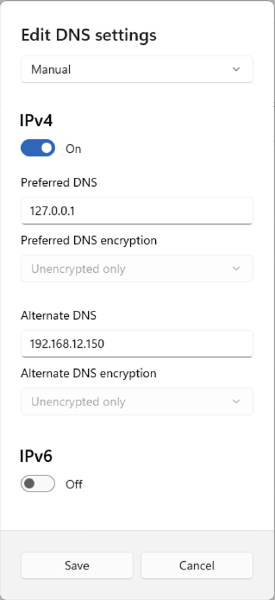
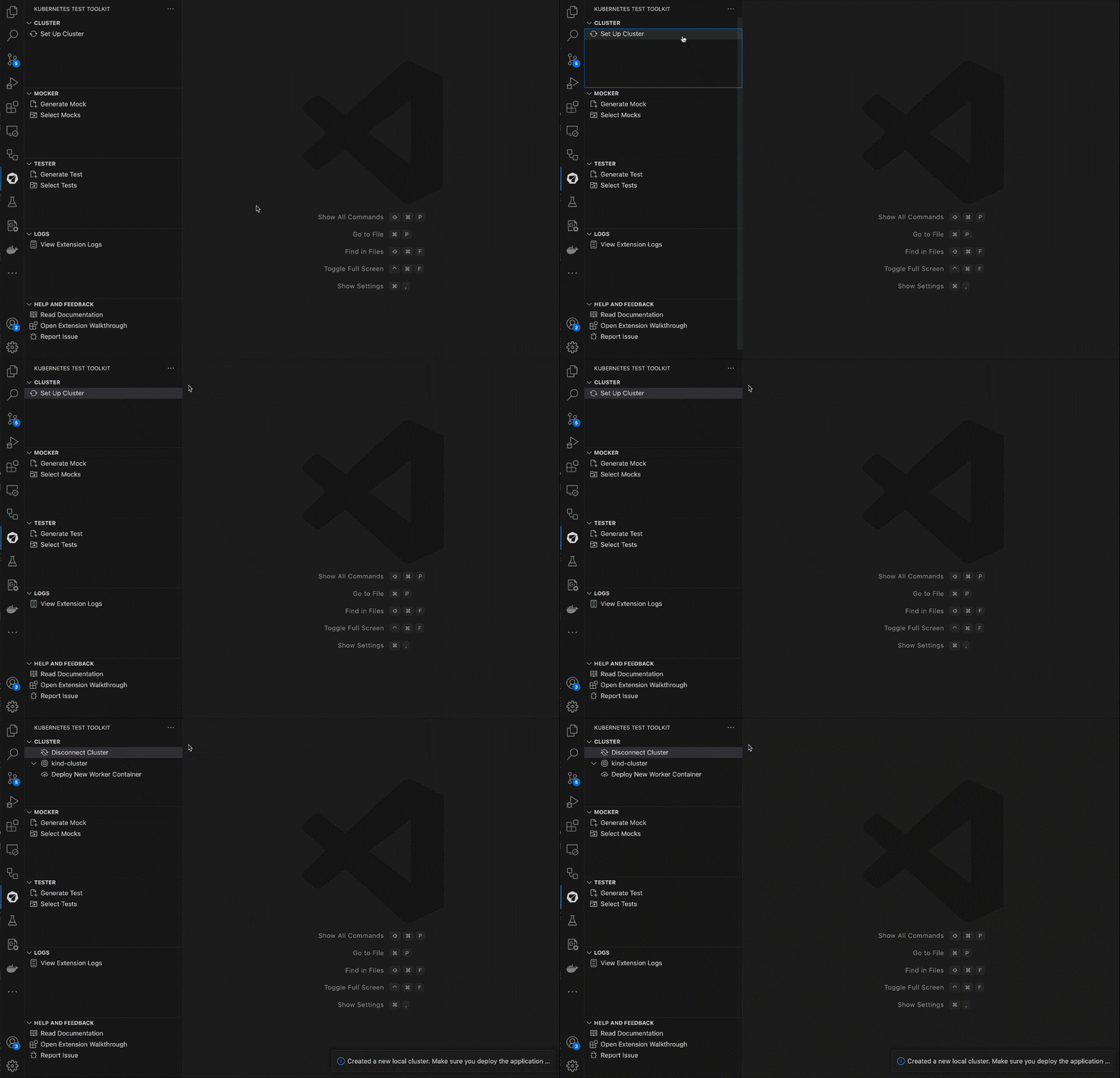

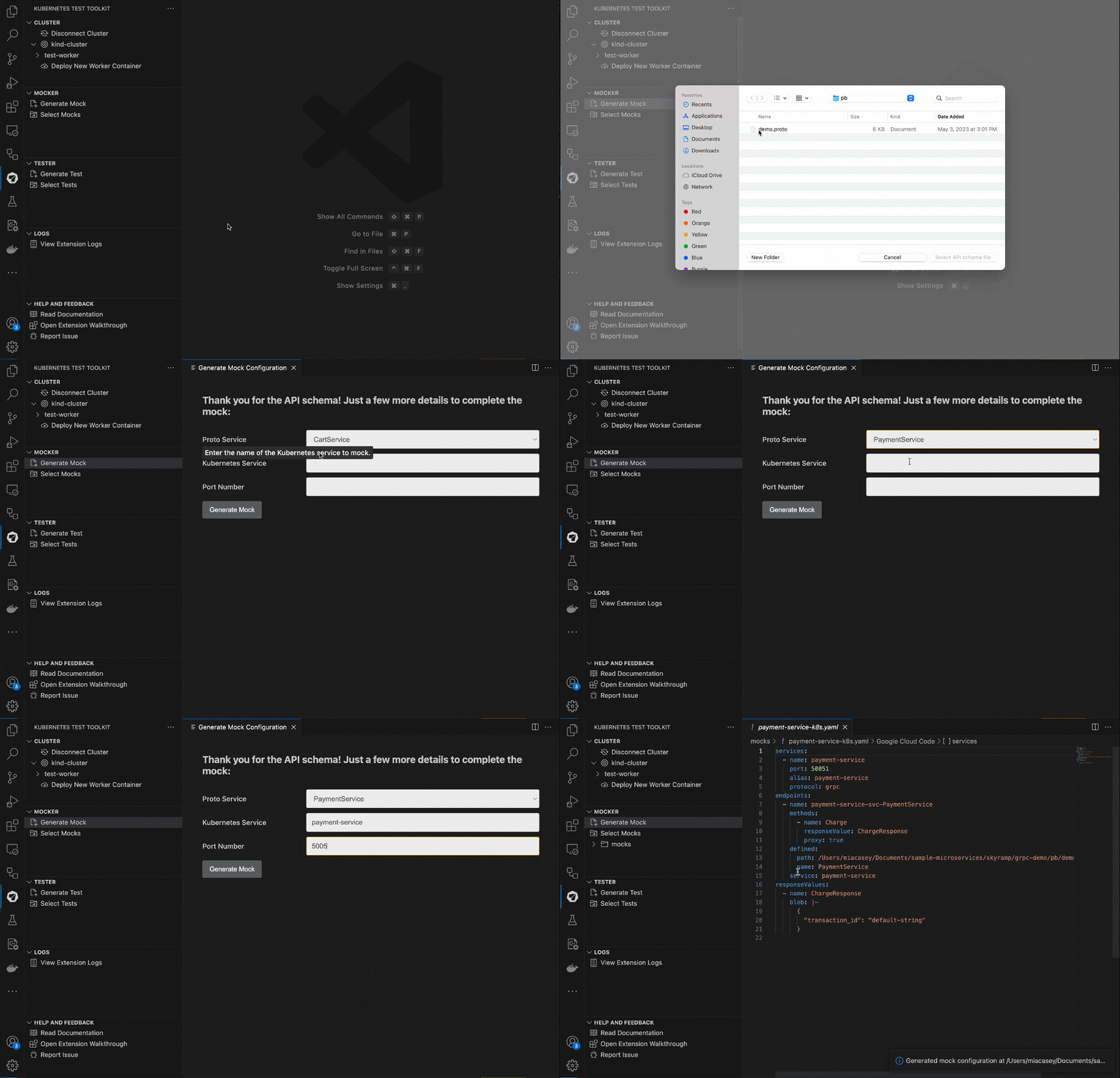
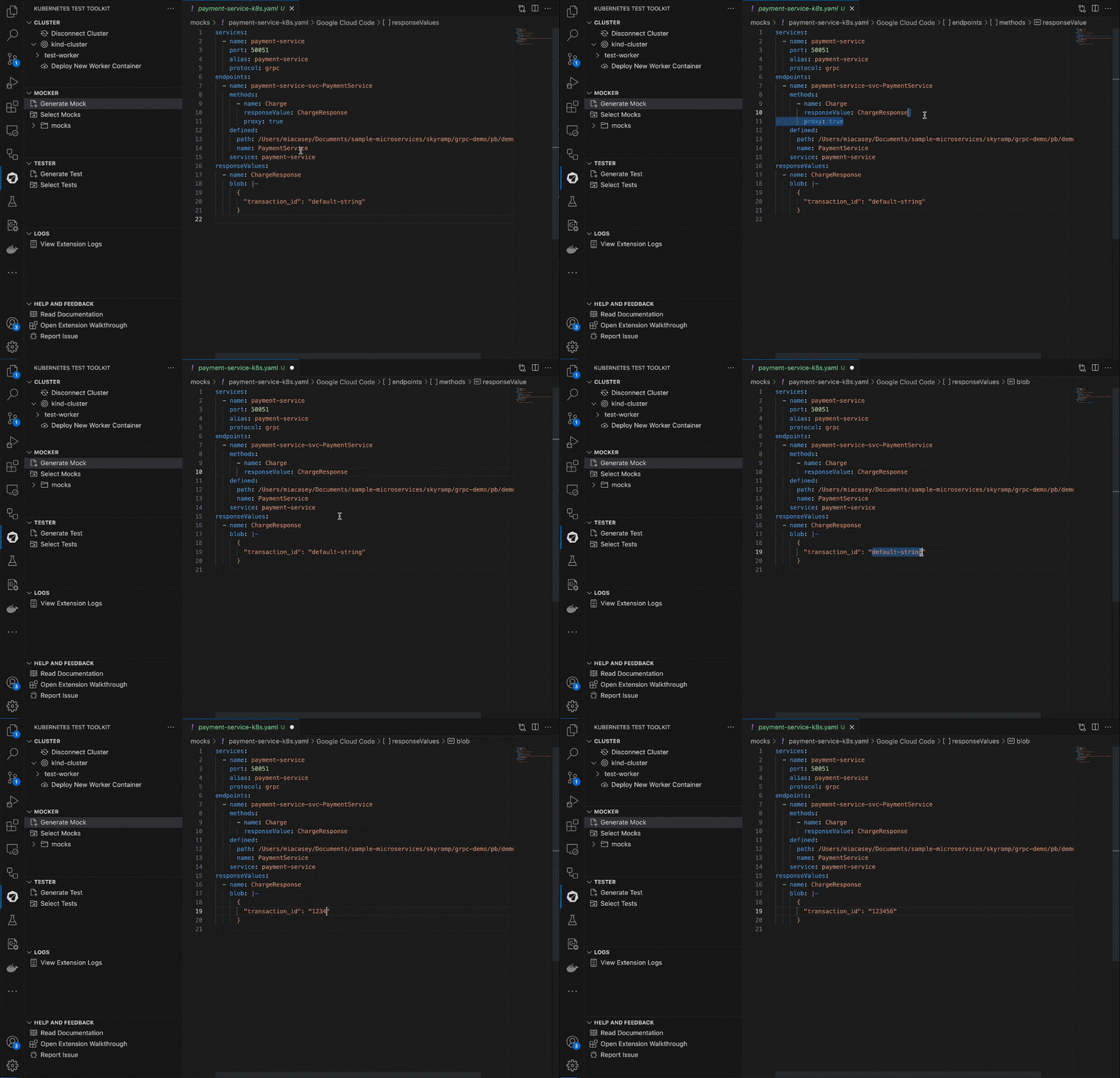
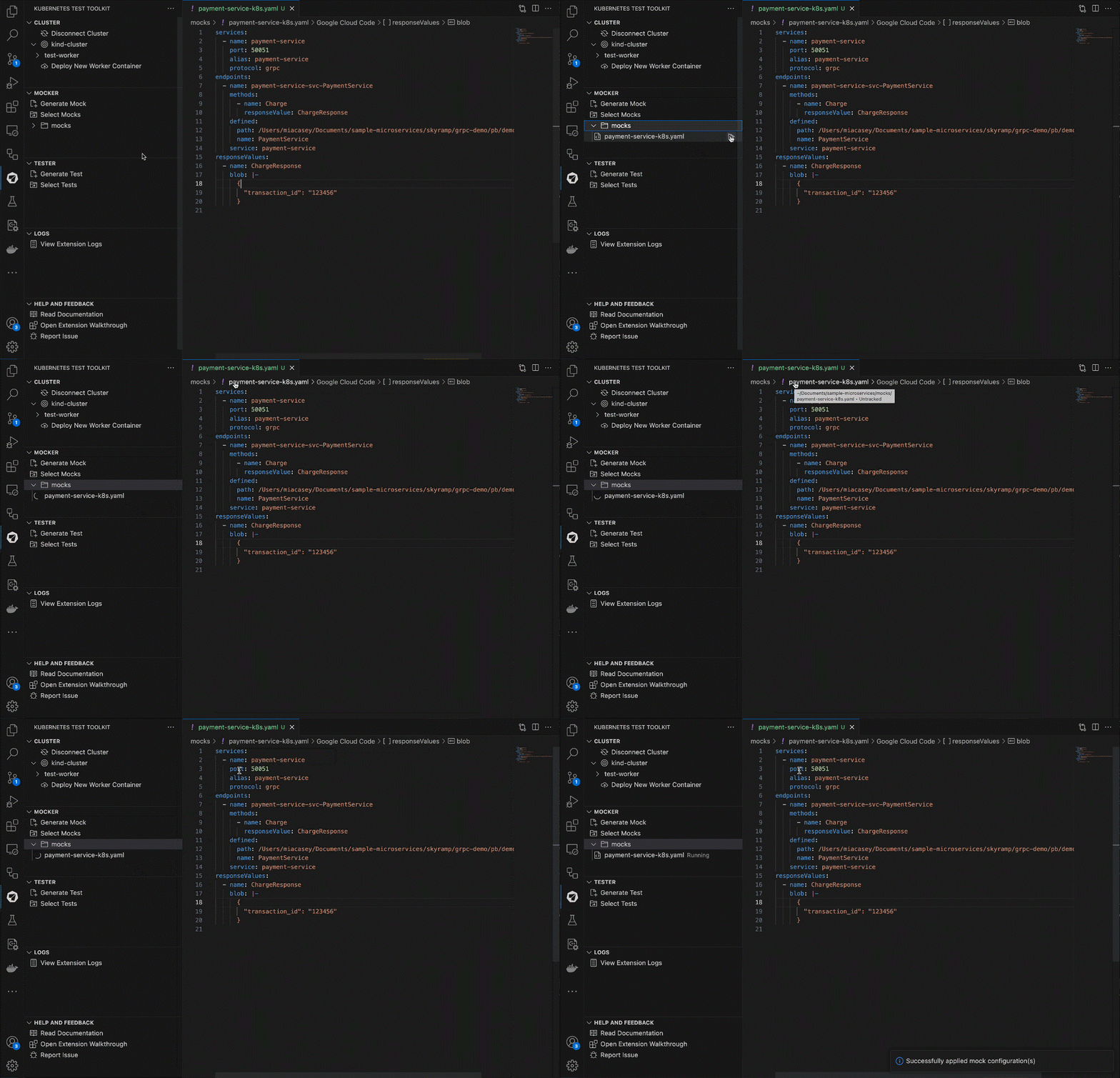 That’s it! All calls to the mocked service/s are now routed to Mocker and it responds with the default values in the configuration.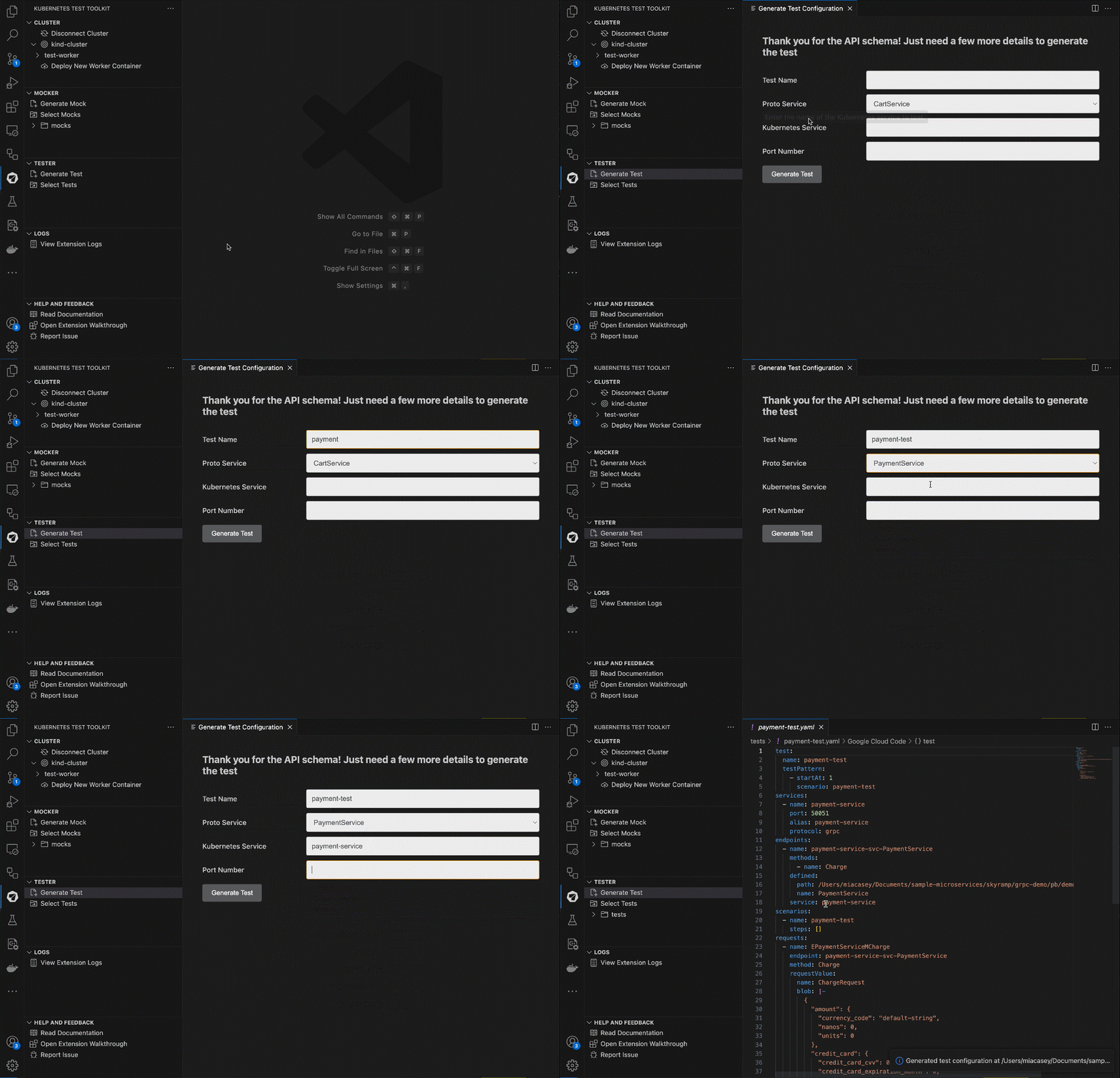

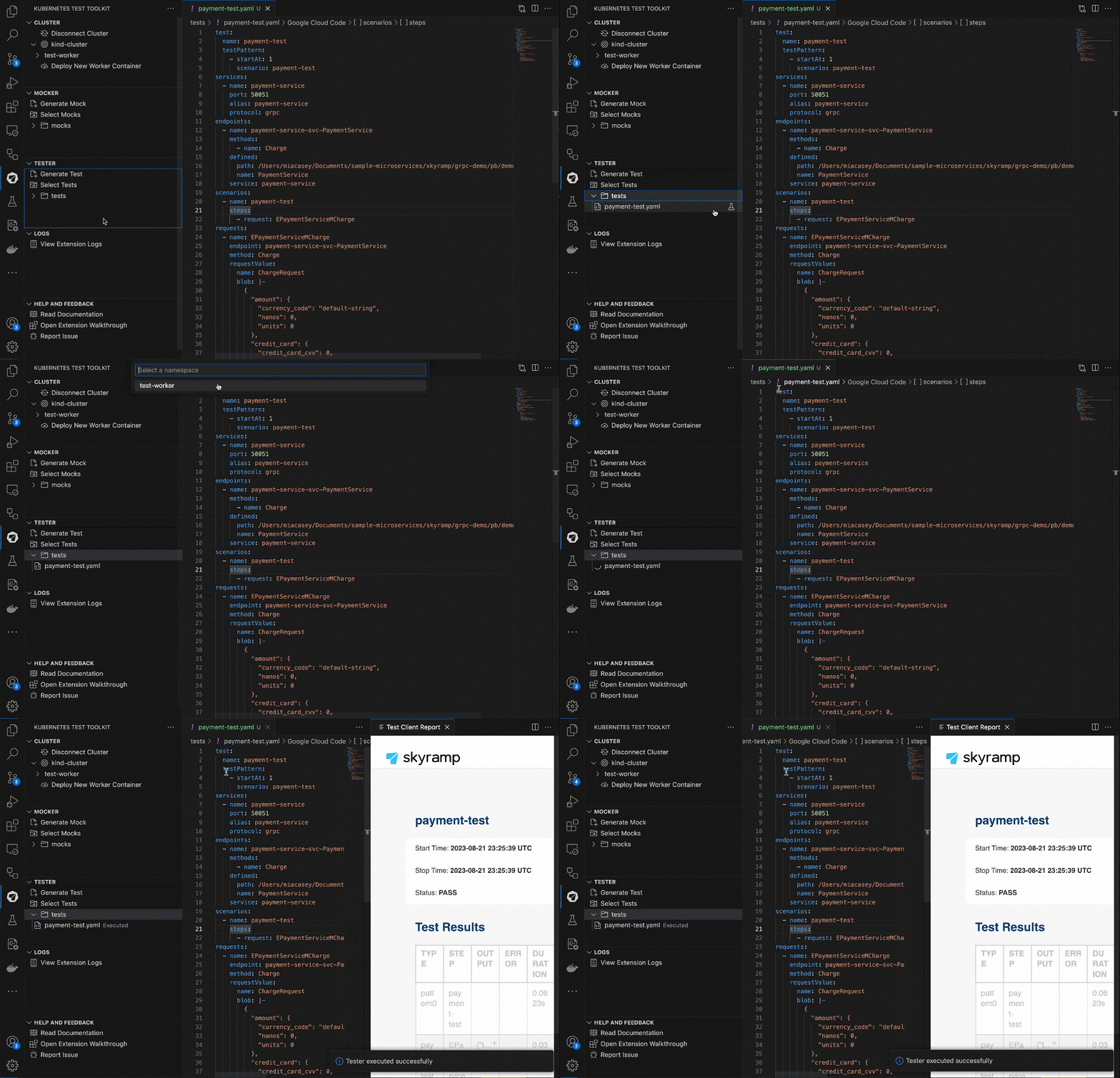 That’s it! Tester will execute the test and output on the test results in the